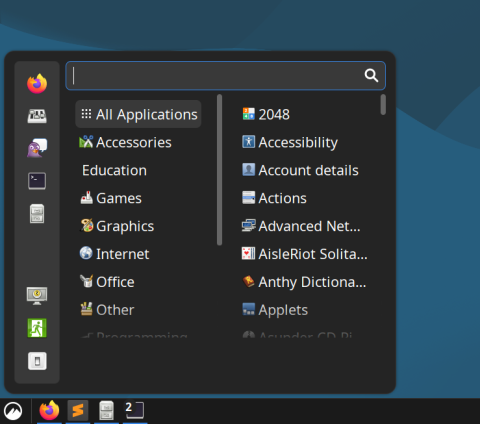
The Cinnamon Desktop ("theme") with the Orchis-Light theme works well in Debian 13. Shortcuts can easily be configured and set up with Jumpapp and exported or imported with dconf.
Install Cinnamon Desktop
sudo apt install task-cinnamon-desktop Restart and select Cinnamon from the gear icon in the lower right corner in the log in screen.
Orchis-Light theme
Install the Orchis-Light under Themes > Applications, if you find that the default Gnome has too much space.
Set Ctrl+Alt+Del to shutdown
For some reason, Cinnamon is set to lock the PC if you press Ctrl+Alt+Del.
To get the "Cancel, Suspend, Restart, Shut Down"-options, open "Power Management" via the Menu, and set "Extra options" > "When the power button is pressed" to "Ask".
Jumpapp for shortcuts with auto-focus
Jumpapp is a great tool for custom shortcuts, launching a program if it's not already running, or focusing on the program if it is running. To install, follow the instructions on: https://github.com/mkropat/jumpapp#ubuntu-debian-and-friends
Import or export shortcuts in Cinnamon with dconf
Cinnamon offer great support for exporting and importing shortcuts, making it really easy to transfer them via dconf, Debian's configuration system and settings management tool. First install dconf with this:
sudo apt install dconf-editor You can now export and import shortcuts with dconf with these commands, to or from a file.
Export:
dconf dump /org/cinnamon/desktop/keybindings/ > cinnamon-shortcuts.txtImport:
dconf load /org/cinnamon/desktop/keybindings/ < cinnamon-shortcuts.txtHere's an example of shortcuts for import, just save them as cinnamon-shortcuts.txt and import with the command above.
[/]
custom-list=['custom0', 'custom1', 'custom2', 'custom3', 'custom4', 'custom5', 'custom6', 'custom7', 'custom9', 'custom10', 'custom11', 'custom12', 'custom13', '__dummy__']
show-desklets=['<Super><Shift>s']

[custom-keybindings/custom0]
binding=['onehalf']
command='jumpapp gnome-terminal --maximize'
name='Gnome Terminal'

[custom-keybindings/custom1]
binding=['<Super>e']
command='jumpapp -f nemo'
name='Nemo'

[custom-keybindings/custom10]
binding=['<Super><Alt>t']
command='nemo trash://'
name='Nemo trash'

[custom-keybindings/custom11]
binding=['<Super>s']
command='jumpapp gnome-system-monitor'
name='Gnome System Monitor'

[custom-keybindings/custom12]
binding=['<Super>k']
command='jumpapp shutter'
name='Shutter'

[custom-keybindings/custom13]
binding=['<Super>h']
command='jumpapp google-chrome'
name='Chromium'

[custom-keybindings/custom2]
binding=['<Super>f']
command='jumpapp firefox'
name='Firefox'

[custom-keybindings/custom3]
binding=['<Super>x']
command='jumpapp subl'
name='Subl'

[custom-keybindings/custom4]
binding=['<Super>t']
command='jumpapp thunderbird'
name='Thunderbird'

[custom-keybindings/custom5]
binding=['<Super>g']
command='jumpapp gimp'
name='Gimp'

[custom-keybindings/custom6]
binding=['<Super>c']
command='jumpapp gnome-calculator'
name='Calculator'

[custom-keybindings/custom7]
binding=['<Super>a']
command='jumpapp -f audacious'
name='Audacious'

[custom-keybindings/custom9]
binding=['<Super>o']
command='jumpapp opera --start-maximized'
name='Opera'

[media-keys]
home=['XF86Explorer']
logout=@as []
shutdown=['<Primary><Alt>Delete', 'XF86PowerOff']
video-rotation-lock=@as []
www=@as []

[wm]
close=['<Alt>F4', '<Primary>q']
maximize=['<Super>Up']
push-tile-up=@as []
show-desktop=['<Super>d', '<Super>m']
switch-monitor=['XF86Display']
toggle-fullscreen=@as []