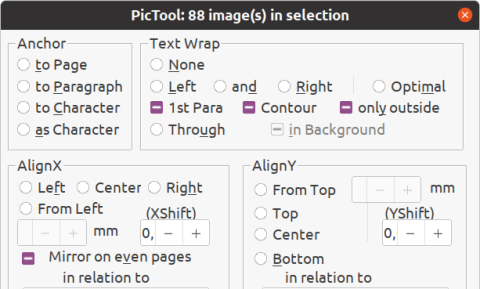
You can batch update all images in a Writer (LibreOffice) document with the awesome PicTool extension: https://extensions.libreoffice.org/en/extensions/show/change-multiple-images-in-writer-pictool
After installing the LibreOffice PicTool extension, you might try to look under the menus, styles, etc. to find it ... but it's nowhere to be found ...
But look in the upper left corner, under "File", where it's hiding in plain sight :-) 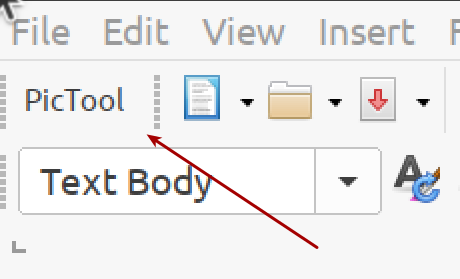
Usage
Use it to for example scale down all user pictures, if you have copied hundred of comments from a web page. Simply click the PicTool icon, enable "Size" radio button, enter for example "5" in "X" and "Y" fields and click "OK". Simple as that. You can also delete all images in the document, if that's what you want, by checking "Delete!" and clicking "OK".
Cannot click dialog window buttons to apply changes
All the options push the "Ok" or "Apply" buttons down below the bottom of the screen. Alt+O (the letter o) works to accept the changes for "Pictool", but not "Pictool(big)". To access the buttons when a window is bigger than the monitor resolution, use the keyboard or mouse solution:
- Keyboard: Press Alt+F7 and move the dialog window with arrow keys, until you can reach the button.
- Mouse: Hold down the Alt-key, mouse click inside the dialog window (not the top), and drag it upwards.
From https://askubuntu.com/questions/65457/window-too-big-cant-resize-or-maximize.
thanks
Thank you! I was looking for something like that. I installed it and it works very well :)